Your Cart is currently empty!
Product update
Coupon
add
Coupon code invalid! Please re-enter!
AJAX loader
You are here: HomeBlogItems filtered by date: November 2012

Items filtered by date: November 2012

Contents

The guide will help you install SJ Travel II and extensions included in this template step by step.
If you want to install the template exactly like our demo (same data), you should purchase and install the Quickstart Package.
  • Important Notes
  • 1. Download Template and Extensions
  • 2. SJ Travel II Template - Installation and Configuration
  • 3. Imperative Plugins - Installation and Configuration
  • 4. Other Extensions - Installation and Configuration

Important Notes

Requirement:
  • Joomla! 2.5, Joomla! 3.x
  • K2 and Kunena component (customized and included in Quickstart). Download K2 Component and Kunena Component.
  • Some premium SJ Extensions (see part 3-Core Plugins and 4-Other Extensions)

1. Download Template and Extensions

1.1 Used for members of JTC - Joomla Template Club

STEP 1: Login at SmartAddons.com

STEP 2: Go to Download -> Joomla Templates Club (JTC)

STEP 3: Under Premium Joomla Templates, click SJ Travel II to download

STEP 4: Under SJ Travel II -> Download packages as you want

1.2 Used for single product purchased via e-cart

Receive Donwload-Info email -> Download packages as you want

2. SJ Travel II -Installation and Configuration

2.1 Installation

  • Log in Administrator of Joomla! v2.5.x, go to Extensions -> Extension Manager
    On this page, click Choose File button, select our template file you have downloaded then click Upload & Install


  • Set SJ Travel II as default template

2.2 Configuration

The parameters of SJ Travel II Template are divided into the following groups:
  • Global Settings
  • Main Body Column Settings
  • Layout Settings
  • Site Styles Settings
  • Top Menu Settings
  • Content Component
  • Advanced Options
alt

GLOBAL SETTINGS

  • Generator tag - Generate tag for your template
  • Template Width Type - Allow to choose pixel or %
  • Template Width - Allow to set width
  • Hide Main Content Block - Allow to hide Content Component on Homepage
  • Direction - Choose direction of language: RTL/LTR
  • Logo Type - Choose your logo type: image OR text
  • Logo Text - Set text for Text type of logo
  • Slogan - Set your Website slogan here
alt

MAIN BODY COLUMN SETTINGS

  • Main Body Width Type - Allow to choose pixel or %
  • Main Width - Allow to set width of main column
  • Left Width - Allow to set width of left column
  • Right Width - Allow to set width of right column
alt

LAYOUT SETTINGS

  • Default Mode View - Allow to choose mobile or PC layout
  • Window Layout - Allow to choose layout used with PC
  • Mobile Layout - Allow to choose layout used with mobile
  • IPhone Layout - Allow to choose layout used with IPhone
  • Android Layout - Allow to choose layout used with Android
  • Handheld Layout - Allow to choose layout used with other mobiles
  • Overwrite Windows Layout - Used with window mode, when you want to use another layout for a menu. Syntax:
    • Itemid1:Layout_Name1 | Itemid2:Layout_Name2 | ...
    With:
    • Itemid1, Itemid2...: Id of Menus. You can see these in Menu Item Manager
    • Layout_Name1, Layout_Name2...: The name of layout. You can see these in templates/{this_template_name}/layouts folder. NOTE: remove .xml extension
alt

STYLE SETTINGS

  • Default Style - Allow to choose a style from 4 available ones
  • Default Font Size - Allow to choose default font size
  • Default Font-Family - Allow to choose a font-family from 13 available ones. The default one is Arial
  • Google Font-Family - Allow to choose a google font-family used for html tags which are in Affected Selectors parameter below
  • Affected Selectors - Tag names will be applied with google font, comma seperated
alt

TOP MENU SETTINGS

  • Default Type Menu - Allow to choose default menu type shown with template, this list is gotten from Menu Manager
  • Default Menu Style - We support 4 styles for Menus
    • CSS Menu
    • Moo Menu
    • Mega Menu
    • Dropline Menu
  • Use JS for Dropline Menu - Allow to use JS effect for Dropline Menu OR not
  • Javascript Effect - Allow to select which JS Effect used with Moo Menu and Mega Menu
  • Duration Effect - Set time before showing any submenus
  • Start Level - Set level of menu to start rendering the menu
  • End Level - Set level of menu to stop rendering the menu
alt

CONTENT COMPONENT

  • Apply for Blog View - Allow to show the Content block at blog pages OR not
  • Apply for Frontpage view - Allow to show at Frontpage view OR not
  • Leading Images Width - Set width of images of Leading Articles
  • Leading Images Height - Set height of images of Leading Articles
  • Intro Images Width - Set width of images of Intro Articles
  • Intro Images Height - Set height of images of Intro Articles
  • Thumbnail Background Color - Set color background for thumbnail images
  • Thumbnail Mode - Set thumbnail mode:
    • Fill
    • Fit
    • Stretch
    • Center
alt

ADVANCED OPTIONS

  • Show Cpanel - Allow you to show YT Framework Control panel OR not
  • Override Logo Image - Allow you to choose new image link
  • Include LazyLoad plugin - Enable/disable LazyLoad
  • Enable jquery - Enable/disable jquery
  • Optimize Merge File - Choose Yes to optimize all CSS and JS Files which are used in your website
  • Optimize CSS - Choose Yes to optimize only CSS files
  • Optimize CSS Exclude - CSS files which are not optimized, comma separated
  • Optimize JS - Choose Yes to optimize only JS files
  • Optimize JS Exclude - JS files which are not optimized, comma separated
  • Optimize Folder - A specific folder with Css/Js files need to be optimized
  • Optimize HTML - Choose Yes to optimize HTML also
  • Enable Google Analytics - Enable/disable Google Analytics
  • Enter your Google Analytics tracking ID - Copy and paste your Google Analytics tracking ID here

3. Imperative Plugins-Installation and Configuration

You need to install: Yt Plugin, SJ Core and Sj Content Related News plugin.
- Yt Plugin supports Yt Framework for adding extra parameters used with Mega Menu and to compress CSS/JS/HTML when optimizing code.
- While that, SJ Core is used for resizing images in Content Component and other extensions by us.
- Lastly, SJ Content Related News is used for showing other related articles in the same category.

3.1 Installation

  • Now you install SJ Content Related News, Yt Plugin and SJ Core in turn
  • STEP 1: In Administrator on Joomla! v2.5.x, go to Extensions -> Extension Manager
    On this page, click Choose File button, choose plugin file (extracted from extensions zip file) from then click Upload & Install


  • STEP 2:Now, go to Enable SJ Core, Yt Plugin (for Yt Framework) and SJ Content Related News in Extension/Plug-in Manager

3.2 Configuration of YT Plugin (for Yt Framework)

  • Yt Plugin supports Optimizing CSS/ JS/ HTML and support showing Mega Menus nicely. You can see how to optimize CSS/JS/HTML in Configuration part above and how to use YT Menu Params for styling any Menu Items by remarking an example:
  • SUPPORT OPTIMIZING CSS/JS/HTML AND STYLING MEGA MENUS
  • After installing Yt Plugin, go to Extension -> Plug-in Manager and choose to configureYt Plugin:
  • TO YT PLUGIN
  • Configure Yt Pluginto show SJ Help with Report Bugs, Template Tutorials and YT Framework Tutorials
  • SHOWING SJ HELP

    4. Other Extensions - Installation and Configuration

    After creating data, you can install and configure extensions to have a Website as like as our pre-made demo.

    4.1 Install

    4.1.1 List of extensions used in SJ Travel II demo

    You can find a list of modules/plugins/components which are used in SJ Travel II by clicking menu Features -> Extensions of demo Website

    4.1.2 Installation

    • In Administrator on Joomla! v2.5.x, go to Extensions -> Extension Manager
      On this page, click Choose File button, choose an extension file then click Upload & Install


    • Install the rest of extensions as step above

    4.2 Configuration

    After installing extensions which are included in the SJ Travel II template, navigate into Extensions -> Module (or Plug-in) Manager then choose the module or plug-in you want to configure. The following example is choosing a module from Module Manager:

    By this screenshot, you will see how module is placed in the default layout
    :

    This guide will help you place essential menus (Mega Menu), modules (one example each type) and other blocks as homepage of demo Website:

    4.2.1 Mega Menu - Features

  • Menu Item Type
  • Menu Item Type: Text Separator
  • Frontend - Backend
  • FRONTEND
    BACKEND - YT MENU PARAMS
    BACKEND - TREE OF MENUS

    4.2.2 Mega Menu - Joomla!

  • Menu Item Type
  • Menu Item Type: Text Separator
  • Frontend - Backend
  • FRONTEND
    BACKEND - YT MENU PARAMS
    BACKEND - TREE OF MENUS

    4.2.3 Mega Menu - K2

  • Menu Item Type
  • Menu Item Type: Text Separator
  • Frontend - Backend
  • FRONTEND
    BACKEND - YT MENU PARAMS
    BACKEND - TREE OF MENUS

    4.2.4 Smart Search Module

  • Module Position - Module Suffix
  • Position: search
    Suffix: _blank
  • Frontend (demo layout above) - Backend
  • BACKEND

    4.2.5 SJ Content Slideshow Module

  • Module Position - Module Suffix
  • Position: user1
    Suffix: _blank
  • Frontend (demo layout above) - Backend
  • BACKEND

    4.2.6 Find Hotel - Custom HTML Module

    There are several positions that use Custom HTML module. Here we will configure an example. Let take "Find Hotel" at user2 position, others will be the same.

  • Module Position - Module Suffix
  • Position: user2
    Suffix: box-oranges
  • Frontend (demo layout above) - Backend
  • BACKEND

    4.2.7 Sj Module Tabs

  • Module Position - Module Suffix
  • Position: left (second)
    Suffix: _blank
  • Frontend (demo layout above) - Backend
  • BACKEND

    4.2.8 SJ Basic News

  • Module Position - Module Suffix
  • Position: right (first)
    Suffix: title-default
  • Frontend (demo layout above) - Backend
  • BACKEND

    4.2.9 Sj Content Accordion Module

  • Module Position - Module Suffix
  • Position: right (second)
    Suffix: _blank
  • Frontend (demo layout above) - Backend
  • BACKEND

    4.2.10 Sj Article Slider

  • Module Position - Module Suffix
  • Position: usera
    Suffix: no-padding background1
  • Frontend (demo layout above) - Backend
  • BACKEND

    4.2.11 User Resources - Menu Module

    There are several positions that use Menu module. Here we will configure an example. Let take "User Resources" at user10 position, others will be the same.

  • Module Position - Module Suffix
  • Position: user10
    Suffix: Not Used
  • Frontend (demo layout above) - Backend
  • BACKEND

    4.2.12 Footer Menu - Menu Module

  • Module Position - Module Suffix
  • Position: footnav
    Suffix: Not Used
  • Frontend (demo layout above) - Backend
  • BACKEND

    That's homepage. For other advanced and customized configurations, please submit ticket OR purchase our installation services.

    Contents

    The guide will help you install SJ Agriculture and extensions included in this template step by step.
    If you want to install the template exactly like our demo (same data), you should purchase and install the Quickstart Package.
    • Important Notes
    • 1. Download Template and Extensions
    • 2. SJ Agriculture Template - Installation and Configuration
    • 3. Imperative Plugins - Installation and Configuration
    • 4. Other Extensions - Installation and Configuration

    Important Notes

    Requirement:
    • Joomla! 1.7 or 2.5
    • Kunena and VM component (customized and included in Quickstart)
    • Some premium SJ Extensions (see part 3-Core Plugins and 4-Other Extensions)

    1. Download Template and Extensions

    1.1 Used for members of JTC - Joomla Template Club

    STEP 1: Login at SmartAddons.com

    STEP 2: Go to Download -> Joomla Templates Club (JTC)

    STEP 3: Under Premium Joomla Templates, click SJ Agriculture to download

    STEP 4: Under SJ Agriculture -> Download packages as you want

    1.2 Used for single product purchased via e-cart

    Receive Donwload-Info email -> Download packages as you want

    2. SJ Agriculture -Installation and Configuration

    2.1 Installation

    • Log in Administrator of Joomla! v2.5.x, go to Extensions -> Extension Manager
      On this page, click Choose File button, select our template file you have downloaded then click Upload & Install


    • Set SJ Agriculture as default template

    2.2 Configuration

    The parameters of SJ Agriculture Template are divided into the following groups:
    • Global Settings
    • Main Body Column Settings
    • Layout Settings
    • Style Settings
    • Top Menu Settings
    • Content Component Settings
    • Advanced Options
    alt

    GLOBAL SETTINGS

    • Generator tag - Generate tag for your template
    • Template Width Type - Allow to choose pixel or %
    • Template Width - Allow to set width
    • Hide Main Content Block - Allow to hide Content Component on Homepage
    • Direction - Choose direction of language: RTL/LTR
    • Logo Type - Choose your logo type: image OR text
    • Logo Text - Set text for Text type of logo
    • Slogan - Set your Website slogan here
    alt

    MAIN BODY COLUMN SETTINGS

    • Main Body Width Type - Allow to choose pixel or %
    • Main Width - Allow to set width of main column
    • Left Width - Allow to set width of left column
    • Right Width - Allow to set width of right column
    alt

    LAYOUT SETTINGS

    • Default Mode View - Allow to choose mobile or PC layout
    • Window Layout - Allow to choose layout used with PC
    • Mobile Layout - Allow to choose layout used with mobile
    • IPhone Layout - Allow to choose layout used with IPhone
    • Android Layout - Allow to choose layout used with Android
    • Handheld Layout - Allow to choose layout used with other mobiles
    • Overwrite Windows Layout - Used with window mode, when you want to use another layout for a menu. Syntax:
      • Itemid1:Layout_Name1 | Itemid2:Layout_Name2 | ...
      With:
      • Itemid1, Itemid2...: Id of Menus. You can see these in Menu Item Manager
      • Layout_Name1, Layout_Name2...: The name of layout. You can see these in templates/{this_template_name}/layouts folder. NOTE: remove .xml extension
    alt

    STYLE SETTINGS

    • Default Style - Allow to choose a style from 6 available ones
    • Default Font Size - Allow to choose default font size
    • Default Font-Family - Allow to choose a font-family from 13 available ones. The default one is Arial
    • Google Font-Family - Allow to choose a google font-family used for html tags which are in Affected Selectors parameter below
    • Affected Selectors - Tag names will be applied with google font, comma seperated
    alt

    TOP MENU SETTINGS

    • Default Type Menu - Allow to choose default menu type shown with template, this list is gotten from Menu Manager
    • Default Menu Style - We support 4 styles for Menus
      • CSS Menu
      • Moo Menu
      • Mega Menu
      • Dropline Menu
    • Use JS for Dropline Menu - Allow to use JS effect for Dropline Menu OR not
    • Javascript Effect - Allow to select which JS Effect used with Moo Menu and Mega Menu
    • Duration Effect - Set time before showing any submenus
    • Start Level - Set level of menu to start rendering the menu
    • End Level - Set level of menu to stop rendering the menu
    alt

    CONTENT COMPONENT

    • Apply for Blog View - Allow to show the Content block at blog pages OR not
    • Apply for Frontpage view - Allow to show at Frontpage view OR not
    • Leading Images Width - Set width of images of Leading Articles
    • Leading Images Height - Set height of images of Leading Articles
    • Intro Images Width - Set width of images of Intro Articles
    • Intro Images Height - Set height of images of Intro Articles
    • Thumbnail Background Color - Set color background for thumbnail images
    • Thumbnail Mode - Set thumbnail mode:
      • Fill
      • Fit
      • Stretch
      • Center
    alt

    ADVANCED OPTIONS

    • Show Cpanel - Allow you to show YT Framework Control panel OR not
    • Override Logo Image - Allow you to choose new image link
    • Include LazyLoad plugin - Enable/disable LazyLoad
    • Enable jquery - Enable/disable jquery
    • Optimize Merge File - Choose Yes to optimize all CSS and JS Files which are used in your website
    • Optimize CSS - Choose Yes to optimize only CSS files
    • Optimize CSS Exclude - CSS files which are not optimized, comma separated
    • Optimize JS - Choose Yes to optimize only JS files
    • Optimize JS Exclude - JS files which are not optimized, comma separated
    • Optimize Folder - A specific folder with Css/Js files need to be optimized
    • Optimize HTML - Choose Yes to optimize HTML also
    • Enable Google Analytics - Enable/disable Google Analytics
    • Enter your Google Analytics tracking ID - Copy and paste your Google Analytics tracking ID here

    3. Imperative Plugins-Installation and Configuration

    You need to install: Yt Plugin, SJ Core and Sj Content Related News plugin.
    - Yt Plugin supports Yt Framework for adding extra parameters used with Mega Menu and to compress CSS/JS/HTML when optimizing code.
    - While that, SJ Core is used for resizing images in Content Component and other extensions by us.
    - Lastly, SJ Content Related News is used for showing other related articles in the same category.

    3.1 Installation

    • Yt Plugin and SJ Core has been integrated in template file. Now you install SJ Content Related News
    • STEP 1: In Administrator on Joomla! v2.5.x, go to Extensions -> Extension Manager
      On this page, click Choose File button, choose plugin file plg_content_sj_relatednews.zip (extracted from extensions zip file) from then click Upload & Install


    • STEP 2:Now, go to Enable SJ Core, Yt Plugin (for Yt Framework) and SJ Content Related News in Extension/Plug-in Manager

    3.2 Configuration of YT Plugin (for Yt Framework)

  • Yt Plugin supports Optimizing CSS/ JS/ HTML and support showing Mega Menus nicely. You can see how to optimize CSS/JS/HTML in Configuration part above and how to use YT Menu Params for styling any Menu Items by remarking an example:
  • SUPPORT OPTIMIZING CSS/JS/HTML AND STYLING MEGA MENUS
  • After installing Yt Plugin, go to Extension -> Plug-in Manager and choose to configureYt Plugin:
  • TO YT PLUGIN
  • Configure Yt Pluginto show SJ Help with Report Bugs, Template Tutorials and YT Framework Tutorials
  • SHOWING SJ HELP

    4. Other Extensions - Installation and Configuration

    After creating data, you can install and configure extensions to have a Website as like as our pre-made demo.

    4.1 Install

    4.1.1 List of extensions used in SJ Agriculture demo

    You can find a list of modules/plugins/components which are used in SJ Agriculture by clicking menu Features -> Extensions of demo Website

    4.1.2 Installation

    • In Administrator on Joomla! v2.5.x, go to Extensions -> Extension Manager
      On this page, click Choose File button, choose an extension file then click Upload & Install


    • Install the rest of extensions as step above

    4.2 Configuration

    After installing extensions which are included in the SJ Agriculture template, navigate into Extensions -> Module (or Plug-in) Manager then choose the module or plug-in you want to configure. The following example is choosing a module from Module Manager:

    By this screenshot, you will see how module is placed in the default layout
    :

    This guide will help you place essential menus (Mega Menu), modules (one example each type) and other blocks as homepage of demo Website:

    4.2.1 Mega Menu - Features

  • Menu Item Type
  • Menu Item Type: Text Separator
  • Frontend - Back End
  • FRONTEND
    BACK END - YT MENU PARAMS
    BACK END - TREE OF MENUS

    4.2.2 Mega Menu - About Joomla!

  • Menu Item Type
  • Menu Item Type: Text Separator
  • Frontend - Back End
  • FRONTEND
    BACK END - YT MENU PARAMS
    BACK END - TREE OF MENUS

    4.2.3 Mega Menu - K2

  • Menu Item Type
  • Menu Item Type: Text Separator
  • Frontend - Back End
  • FRONTEND
    BACK END - YT MENU PARAMS
    BACK END - TREE OF MENUS

    4.2.4 Mega Menu - VirtueMart

  • Menu Item Type
  • Menu Item Type: Text Separator
  • Frontend - Back End
  • FRONTEND
    BACK END - YT MENU PARAMS
    BACK END - TREE OF MENUS

    4.2.5 SJ Minicart Pro Module

  • Module Position - Module Suffix
  • Position: topleft
    Suffix: clear
  • Frontend (demo layout above) - Back End
  • BACK END

    4.2.6 Top Right

    There are several positions that use Custom HTML module. Here we will configure an example. Let take "Social Network" at topright position, others will be the same.

  • Module Position - Module Suffix
  • Position: topright
    Suffix: clear topRight
  • Frontend (demo layout above) - Back End
  • BACK END

    4.2.7 SJ Content Slideshow

  • Module Position - Module Suffix
  • Position: slideshow
    Suffix: Not Used
  • Frontend (demo layout above) - Back End
  • BACK END

    4.2.8 SJ News Extra Slider Module

  • Module Position - Module Suffix
  • Position: user3
    Suffix: clear
  • Frontend (demo layout above) - Back End
  • BACK END

    4.2.9 Breadcrumbs Modules

  • Module Position - Module Suffix
  • Position: breadcrumb
    Suffix: Not Used
  • Frontend (demo layout above) - Back End
  • BACK END

    4.2.10 Categories Menu Module

    There are several positions that use Menu module. Here we will configure an example. Let take "Categories" at left position, others will be the same.

  • Module Position - Module Suffix
  • Position: left (first)
    Suffix: Not Used
  • Frontend (demo layout above) - Back End
  • BACK END

    4.2.11 SJ Gallery Module

  • Module Position - Module Suffix
  • Position: left (second)
    Suffix: Not Used
  • Frontend (demo layout above) - Back End
  • BACK END

    4.2.12 Smart Search Module

  • Module Position - Module Suffix
  • Position: nav2
    Suffix: blank
  • Frontend (demo layout above) - Back End
  • BACK END

    4.2.13 SJ Content Accordion Module

  • Module Position - Module Suffix
  • Position: right (first)
    Suffix: Not Used
  • Frontend (demo layout above) - Back End
  • BACK END

    4.2.13 SJ Content Accordion Module

  • Module Position - Module Suffix
  • Position: right (first)
    Suffix: Not Used
  • Frontend (demo layout above) - Back End
  • BACK END

    4.2.14 SJ Basic News Module

  • Module Position - Module Suffix
  • Position: right (second)
    Suffix: Not Used
  • Frontend (demo layout above) - Back End
  • BACK END

    4.2.15 Footer

    Now there are one Menu module placed in this position. You can try some other ones.


    That's homepage. For other advanced and customized configurations, please submit ticket OR purchase our installation services.

    Contents

    The guide will help you install SJ ESport and extensions included in this template step by step.
    If you want to install the template exactly like our demo (same data), you should purchase and install the Quickstart Package.
    • Important Notes
    • 1. Download Template and Extensions
    • 2. SJ ESport Template - Installation and Configuration
    • 3. Imperative Plugins - Installation and Configuration
    • 4. Other Extensions - Installation and Configuration

    Important Notes

    Requirement:
    • Joomla! and K2 (supported versions are listed on our sale page)
    • Some premium SJ Extensions (see part 3-Core Plugins and 4-Other Extensions)

    1. Download Template and Extensions

    1.1 Used for members of JTC - Joomla Template Club

    STEP 1: Login at SmartAddons.com

    STEP 2: Go to Download -> Joomla Templates Club (JTC)

    STEP 3: Under Premium Joomla Templates, click SJ ESport Responsive to download

    STEP 4: Under SJ ESport Responsive -> Download packages as you want

    1.2 Used for single product purchased via e-cart

    Receive Donwload-Info email -> Download packages as you want

    2. SJ ESport -Installation and Configuration

    2.1 Installation

    • Log in Administrator of Joomla! v2.5.x, go to Extensions -> Extension Manager
      On this page, click Choose File button, select our template file you have downloaded then click Upload & Install


    • Set SJ ESport as default template

    2.2 Configuration

    The parameters of SJ ESport Template are divided into the following groups:
    • Global Settings
    • Layout Settings
    • Site Styles
    • Typography
    • Top Menu Settings
    • Content Component
    • Optimize CSS,JS
    • Advanced Options
    alt

    GLOBAL SETTINGS

    • Generator tag - Generate tag for your template
    • Hide Main Content Block - Allow to hide Content Component on Homepage
    • Direction - Choose direction of language: RTL/LTR
    • Logo Type - Choose your logo type: image OR text
    • Logo Text - Set text for Text type of logo
    • Slogan - Set your Website slogan here
    alt

    LAYOUT SETTINGS

    • Select Layout - Allow to set default layout xml file
    • Overwrite Layouts Windows - Used with window mode, when you want to use another layout for a menu. Syntax:
      • Itemid1:Layout_Name1 | Itemid2:Layout_Name2 | ...
      With:
      • Itemid1, Itemid2...: Id of Menus. You can see these in Menu Item Manager
      • Layout_Name1, Layout_Name2...: The name of layout. You can see these in templates/{this_template_name}/layouts folder. NOTE: remove .xml extension
    alt

    SITE STYLES

    • Default Style - Allow to choose a style from 6 available ones
    • Body background color - Set color for background of footer
    • Link color - Set color for link
    • Text color - Set color for text
    • Class footer background image - Set CSS class using for image background of footer
    alt

    TYPOGRAPHY

    • Default Font Size - Allow to choose default font size
    • Default Font-Family - Allow to choose a font-family from 13 available ones. The default one is Arial
    • Google Font-Family - Allow to choose a google font-family used for html tags which are in Affected Selectors parameter below
    • Affected Selectors - Tag names will be applied with google font, comma seperated
    alt

    TOP MENU SETTINGS

    • Default Type Menu - Allow to choose default menu type shown with template, this list is gotten from Menu Manager
    • Default Menu Style - We support 4 styles for Menus
      • CSS Menu
      • Moo Menu
      • Mega Menu
      • Dropline Menu
    • Use JS for Dropline Menu - Allow to use JS effect for Dropline Menu OR not
    • Javascript Effect - Allow to select which JS Effect used with Moo Menu and Mega Menu
    • Duration Effect - Set time before showing any submenus
    • Start Level - Set level of menu to start rendering the menu
    • End Level - Set level of menu to stop rendering the menu
    alt

    CONTENT COMPONENT

    • Apply for Blog View - Allow to show the Content block at blog pages OR not
    • Apply for Frontpage view - Allow to show at Frontpage view OR not
    • Leading Images Width - Set width of images of Leading Articles
    • Leading Images Height - Set height of images of Leading Articles
    • Intro Images Width - Set width of images of Intro Articles
    • Intro Images Height - Set height of images of Intro Articles
    • Thumbnail Background Color - Set color background for thumbnail images
    • Thumbnail Mode - Set thumbnail mode:
      • Fill
      • Fit
      • Stretch
      • Center
    alt

    OPTIMIZE CSS, JS

    • Optimize Merge File - Choose Yes to optimize all CSS and JS Files which are used in your website
    • Optimize CSS - Choose Yes to optimize only CSS files
    • Optimize CSS Exclude - CSS files which are not optimized, comma separated
    • Optimize JS - Choose Yes to optimize only JS files
    • Optimize JS Exclude - JS files which are not optimized, comma separated
    • Optimize Folder - A specific folder with Css/Js files need to be optimized
    alt

    ADVANCED OPTIONS

    • Show Back to Top - Allow you to show Back to Top button OR not
    • Show Cpanel - Allow you to show YT Framework Control panel OR not
    • Include LazyLoad plugin - Enable/disable LazyLoad
    • Enable jquery - Enable/disable jquery
    • Enable Google Analytics - Enable/disable Google Analytics
    • Enter your Google Analytics tracking ID - Copy and paste your Google Analytics tracking ID here

    3. Imperative Plugins-Installation and Configuration

    You need to install: Yt Plugin, SJ Core and Sj Content Related News plugin.
    - Yt Plugin supports Yt Framework for adding extra parameters used with Mega Menu and to compress CSS/JS/HTML when optimizing code.
    - While that, SJ Core is used for resizing images in Content Component and other extensions by us.
    - Lastly, SJ Content Related News is used for showing other related articles in the same category.

    3.1 Installation

    • Yt Plugin and SJ Core has been integrated in template file. Now you install SJ Content Related News
    • STEP 1: In Administrator on Joomla! v2.5.x, go to Extensions -> Extension Manager
      On this page, click Choose File button, choose plugin file (extracted from extensions zip file) from then click Upload & Install


    • STEP 2:Now, go to Enable SJ Core, Yt Plugin (for Yt Framework) and SJ Content Related News in Extension/Plug-in Manager

    3.2 Configuration of YT Plugin (for Yt Framework)

  • Yt Plugin supports Optimizing CSS/ JS/ HTML and support showing Mega Menus nicely. You can see how to optimize CSS/JS/HTML in Configuration part above and how to use YT Menu Params for styling any Menu Items by remarking an example:
  • SUPPORT OPTIMIZING CSS/JS/HTML AND STYLING MEGA MENUS
  • After installing Yt Plugin, go to Extension -> Plug-in Manager and choose to configureYt Plugin:
  • TO YT PLUGIN
  • Configure Yt Pluginto show SJ Help with Report Bugs, Template Tutorials and YT Framework Tutorials
  • SHOWING SJ HELP

    4. Other Extensions - Installation and Configuration

    After creating data, you can install and configure extensions to have a Website as like as our pre-made demo.

    4.1 Install

    4.1.1 List of extensions used in SJ ESport demo

    You can find a list of modules/plugins/components which are used in SJ ESport by clicking menu Features -> Extensions of demo Website

    4.1.2 Installation

    • In Administrator on Joomla! v2.5.x, go to Extensions -> Extension Manager
      On this page, click Choose File button, choose an extension file then click Upload & Install


    • Install the rest of extensions as step above

    4.2 Configuration

    After installing extensions which are included in the SJ ESport template, navigate into Extensions -> Module (or Plug-in) Manager then choose the module or plug-in you want to configure. The following example is choosing a module from Module Manager:

    By this screenshot, you will see how module is placed in the default layout
    :

    This guide will help you place essential menus (Mega Menu), modules (one example each type) and other blocks as homepage of demo Website:

    4.2.1 Mega Menu - Features

  • Menu Item Type
  • Menu Item Type: Text Separator
  • Frontend - Back End
  • FRONTEND
    BACK END - YT MENU PARAMS
    BACK END - TREE OF MENUS

    4.2.2 Mega Menu - About Joomla!

  • Menu Item Type
  • Menu Item Type: Text Separator
  • Frontend - Back End
  • FRONTEND
    BACK END - YT MENU PARAMS
    BACK END - TREE OF MENUS

    4.2.3 Mega Menu - News (named 'K2' as our current demo)

  • Menu Item Type
  • Menu Item Type: External URL
  • Frontend - Back End
  • FRONTEND
    BACK END - YT MENU PARAMS
    BACK END - TREE OF MENUS

    4.2.4 Slideshow - Sj Content Slick Slider Responsive Module

  • Module Position - Module Suffix
  • Position: slideshow
    Suffix: blank
  • Frontend (demo layout above) - Back End
  • BACK END

    4.2.5 Sj MegaNews II

  • Module Position - Module Suffix
  • Position: user4 (first)
    Suffix: blank
  • Frontend (demo layout above) - Back End
  • BACK END

    4.2.6 Sj Module Tabs

  • Module Position - Module Suffix
  • Position: user4 (second)
    Suffix: blank
  • Frontend (demo layout above) - Back End
  • BACK END

    4.2.7 Club Football - Sj Article Slider Responsive

  • Module Position - Module Suffix
  • Position: user4 (third)
    Suffix: blank bg1
  • Frontend (demo layout above) - Back End
  • BACK END

    4.2.8 Sj Accordion Modules

  • Module Position - Module Suffix
  • Position: right (first)
    Suffix: blank
  • Frontend (demo layout above) - Back End
  • BACK END

    4.2.9 Portrait players - Sj Article Slider Responsive Module

  • Module Position - Module Suffix
  • Position: right (second)
    Suffix: Not Used
  • Frontend (demo layout above) - Back End
  • BACK END

    4.2.10 All Course - Latest New Module

  • Module Position - Module Suffix
  • Position: right (third)
    Suffix: Not Used
  • Frontend (demo layout above) - Back End
  • BACK END

    4.2.11 Advertising - Custom HTML

  • Module Position - Module Suffix
  • Position: right (forth)
    Suffix: blank
  • Frontend (demo layout above) - Back End
  • BACK END

    4.2.12 Joomla Templates - Menu Module

    There are several positions that use Menu module. Here we will configure an example. Let take "Joomla Templates" at user5 position, others will be the same.

  • Module Position - Module Suffix
  • Position: user5
    Suffix: Not Used
  • Frontend (demo layout above) - Back End
  • BACK END

    AND Footer

    Now there are not modules placed in this position. You can try some ones.


    That's homepage. For other advanced and customized configurations, please submit ticket OR purchase our installation services.

    Latest Version 3.0 » Updated to Joomla 5

    SJ Gallery Pro is a responsive gallery module made for Joomla! CMS. It can act as an image slideshow. Besides, it allows images to be popped-up so that visitors can view images in a more convenient way.


    Sj Company is a responsive business Joomla template made for Joomla! 5.x, 4.x, 3.x. Designed with luxurious and elegant colors, and integrated with many SJ modules allowing to show portfolios and galleries, this Joomla template is suitable for corporate Websites with very large portfolio and modern picture showcase.

    Holiday is coming, with Black Friday for sale, Noel for faith, New Year for celebration... Let discover favourite places, glorious hotels and interesting resorts through SJ Resorts - a brand new template for Joomla! 2.5. This will be released soon depending on your comments to help improve it.

    Name: SJ Resorts - Responsive Template for SobiPro
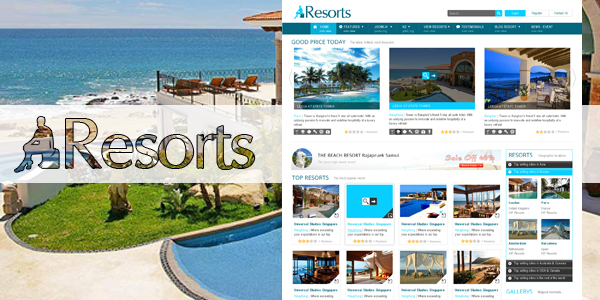
    Made for Joomla! 2.5 and SobiPro Component, great for hotel, resort, spa... directories, right?
    Extensions: many developed in-house.


    This template offers 5 color styles and here are some images for previewing:
    SJ AppStore HiTech is a creative responsive template made for Joomla! 2.5, integrated with the Virtuemart as a powerful eCommerce component. This clean and clear template would be perfect match for online technology products like Mobile store, Camera Store, Computer store or accessory products...
    A month ago, we have published SJ Joomla3 - a free template for Joomla! 3. We have received quite much feedback on when our template will be for Joomla! 3 commercially. So we will release this Joomla! template within next week to respond to your kind request. Comments are welcomed to help improve it.

    Name: SJ Company - Responsive Joomla! Template
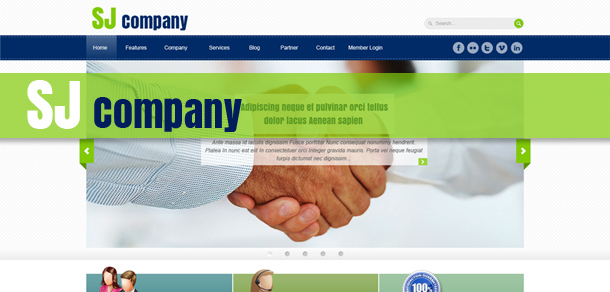
    Made for Joomla! 2.5 as well as Joomla! 3.0 (great news)
    Extensions: many developed in-house will be included
    SJ Company template uses business theme. It is made with 5 color styles and responsive layout, certainly for Joomla! 3 compatible. This Joomla! websites will be focusing on corporate portal and business stuff, but of course, ways to use it is on your own.
    When making this template, we kept in mind 3 things:
    - Elegant template
    - Clean and responsive layout
    - Abundant and easily customizable options


    This template offers 3 columns in wide full-width, here are some images for previewing:

    This brand-new module for Joomla! is named SJ Responsive Content. With a responsive layout, it will bring mobile experience instantly to your readers without any coding effort. Made for Content component, this module shows all articles as a Pinterest page (infinitive scrolling).

    Yesterday, Joomla released 2 new versions for users love Joomla: Joomla 2.5.8 and Joomla 3.0.2. These are security release. In this article, we will see how is new in these packages.


    JOOMLA! v2.5.8 FOR J2.5 USERS

    After releasing Joomla 3.0, many users are recommended to stay with series v2.5.x of Joomla. These follow information is for you.
    Page 2 of 3

    Love all our templates?

    Join our membership clubs starting at $49 only for access to all of our templates

    Join Now
    Home Pricing
    Your Cart is currently empty!
    Product update
    Coupon
    add
    Coupon code invalid! Please re-enter!
    AJAX loader
    SearchSupport
    Magento Themes Magento Extensions Free Magento Extensions Prestashop Themes Prestashop Modules Magento 2 Themes Smartcarex - Phụ Kiện Ô TÔ Bạt phủ ô tô cao cấp Bơm lốp ô tô Máy hút bụi ô tô